Using sshreach.me to test your webhooks
9 years agoOne of the often overlooked but very useful features of sshreach.me is the ability to use it to develop and test webhooks in your web app while it is still on your dev computer and behind a firewall. Let me show you how, using an example.
Suppose you develop a web application and in your web app you want to use PayPal’s services to allow your customers to buy your goods or services. During development you will, of course, use PayPal’s sandbox site where you can simulate and test the process of transferring funds from your customers to you. One of the mechanisms through which PayPal informs you of the money transfer is web notifications (in PayPal’s case they can be called webhooks or IPN or PDT API-s, but the process is similar). Simply said, web notifications or webhooks are special URLs in your web app, through which PayPal informs you of any changes in your account.
Testing those webhooks can present a challenge since your development computer is probably behind a firewall. If you have a static IP, you could probably set up port forwarding on your firewall, but it would mean that your dev environment is constantly open to the world; or, if you do not have a static IP, you would probably need to set up a sandbox server which has to be publicly accessible, and then transfer your dev environment to that server and then push changes from your computer to the testing server every time you make changes to the webhook code. This can become annoying very quickly.
With sshreach.me, you can just tunnel your development web server’s port through the sshreach.me’s tunnel and then set the PayPal’s notification URLs to the appropriate tunnel exit point. Furthermore, you can open and close the tunnel whenever you need to, so your development server is not visible on the whole internet all the time.
First, just create a new client and forward port number 80 (or whatever your dev server is listening to).
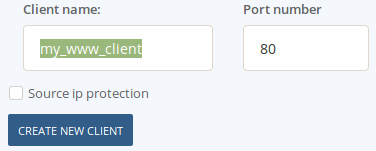
Once the client is created, you can find the entry point on the Info tab (for example: fw1.sshreach.me:10233)
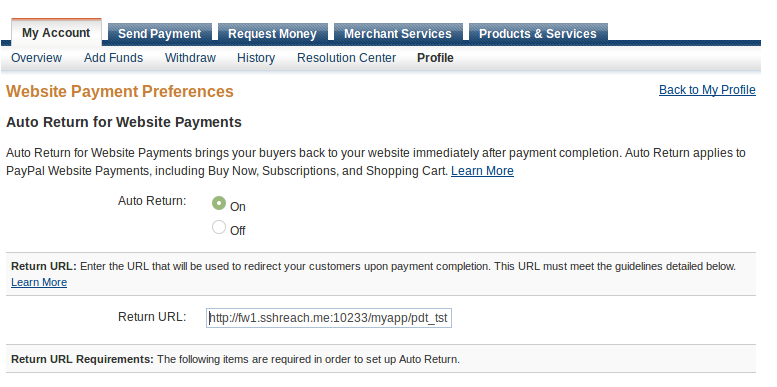
All you need to do now is set up your PayPal’s notification URLs using the above info. For instance, to set up your PDT listener URL, like in this example:
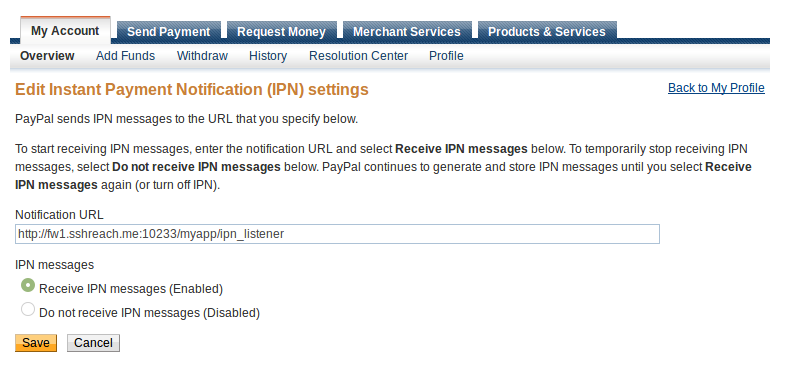
And to set up your IPN listener URL:
Once these settings are saved, you can just open the tunnel and begin testing. When you are sure everything works properly, just close the tunnel and that’s it. Happy coding!
We now support forwarding any port
9 years agoSshreach.me now allows you to forward any port from your computer or server. So for instance, if you are a web developer who would like to share its work with its client you can now forward port 80 from your computer and thus allow your customer to see your work in development on your computer. When you create a new client all you have to do is to fill the value for the port to be forwarded.
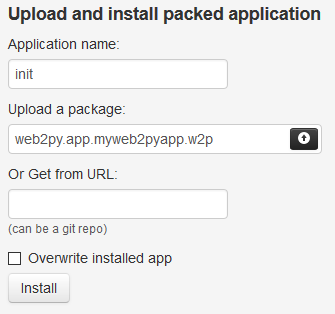
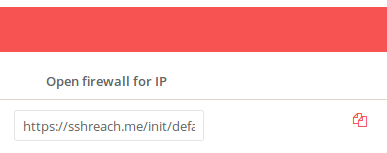
Furthermore, we have added another layer of security. If you check the "source ip protection" checkbox, access to the forwarded client will be accessible only to the one client who you've given access to. To give access to your customer all you have to do is to send them a link that appears in the "Open firewall for IP" column.
When the customer opens the link they will see the following text and they will be granted access to your port forwarded computer.
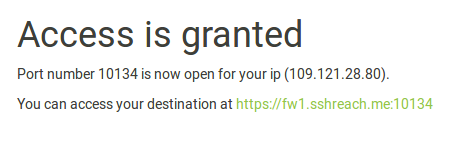
This access only lasts until the tunnel is closed.